
Turn on two-step verification
Two-step verification means signing in needs your password and a 6-digit code from an authenticator app on your phone. Someone who learns your password still can't get in.
Before you start
Install an authenticator app on your phone, such as Google Authenticator, Microsoft Authenticator or any app that supports "TOTP" codes. Account settings are arriving in the app; until then, use the direct link below.
Steps
Go to taxaudit.ng/app/2fa/ while signed in. We email you a security code first to confirm it's you (see "Security codes for important changes").
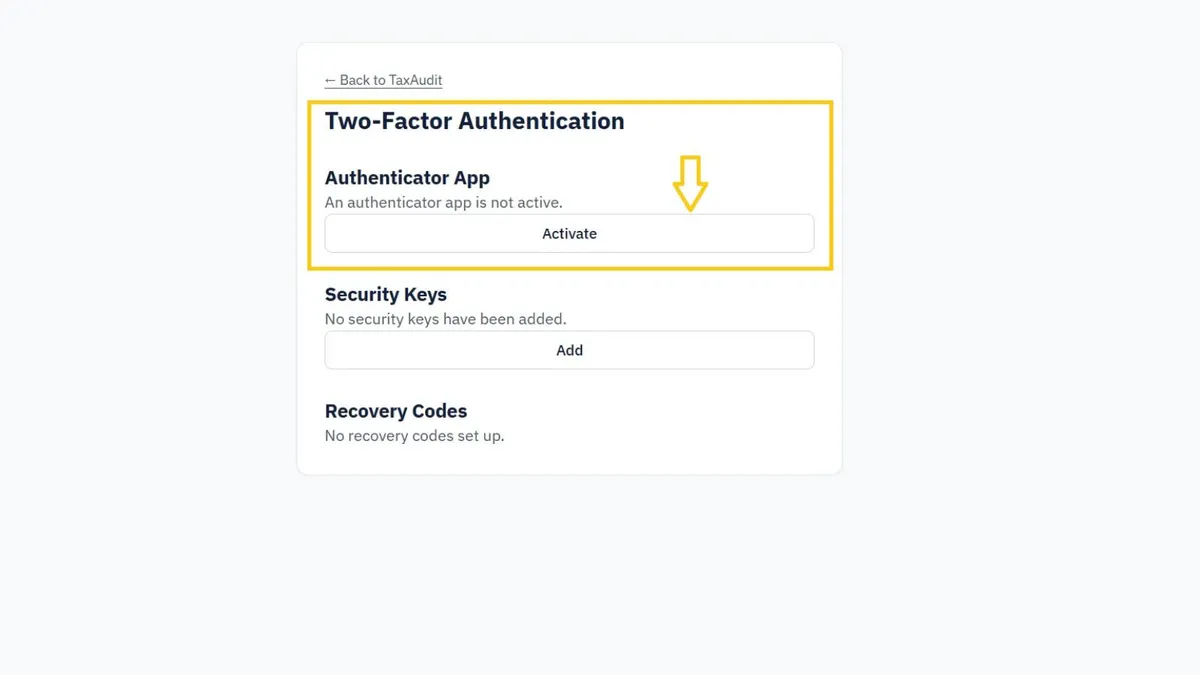
Under Authenticator App, choose Activate.
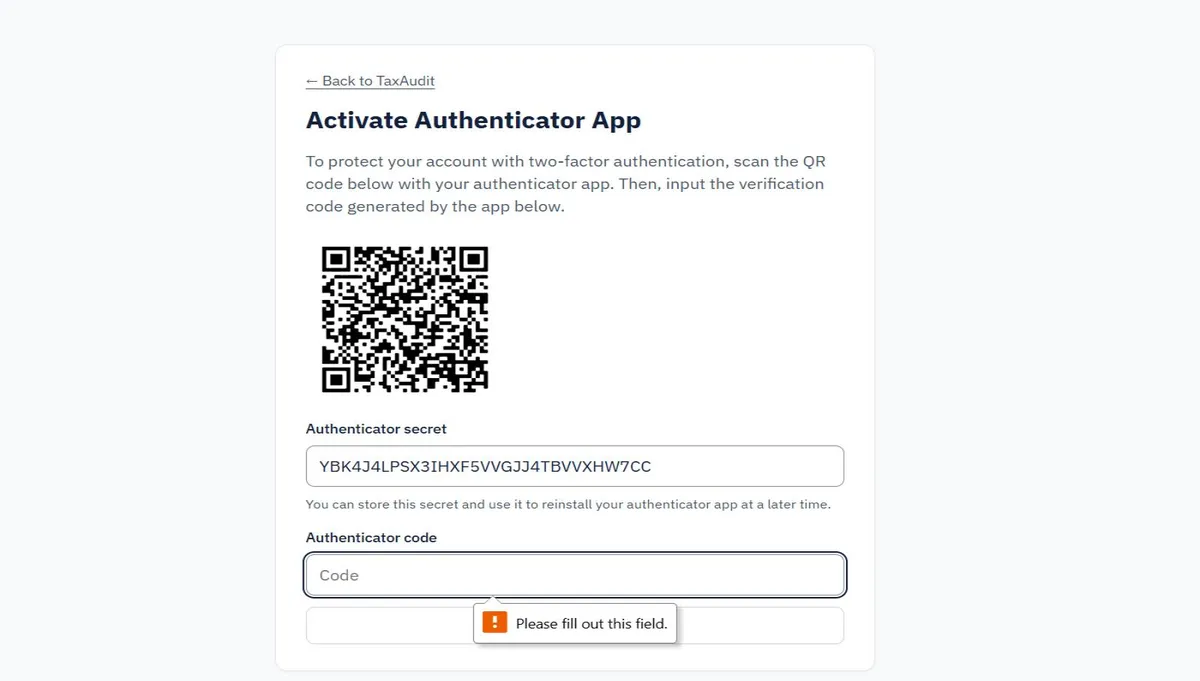
Scan the QR code with your authenticator app, then type the 6-digit code the app shows and choose Activate.
Save your recovery codes when they're shown. They're your way back in if you lose your phone.
Also store the Authenticator secret shown on the page somewhere safe: it lets you set up the app again on a new phone.
Common questions
I changed phones. How do I sign in?
Use one of your recovery codes, then set up the authenticator app again on the new phone.
Is two-step verification required?
It's strongly recommended for everyone, and required for TaxAudit staff. We email you whenever it's turned on or off.